
Below I'll show you how to run a couple of different tests, all of which reveal different aspects of your connection and can be used to troubleshoot all sorts of problems including rulingout your Internet connection as the source if that's the case.
- Using Firefox or Internet Explorer (do NOT use Chrome) go to http://myspeed.visualware.com/index.php and you'll see a map
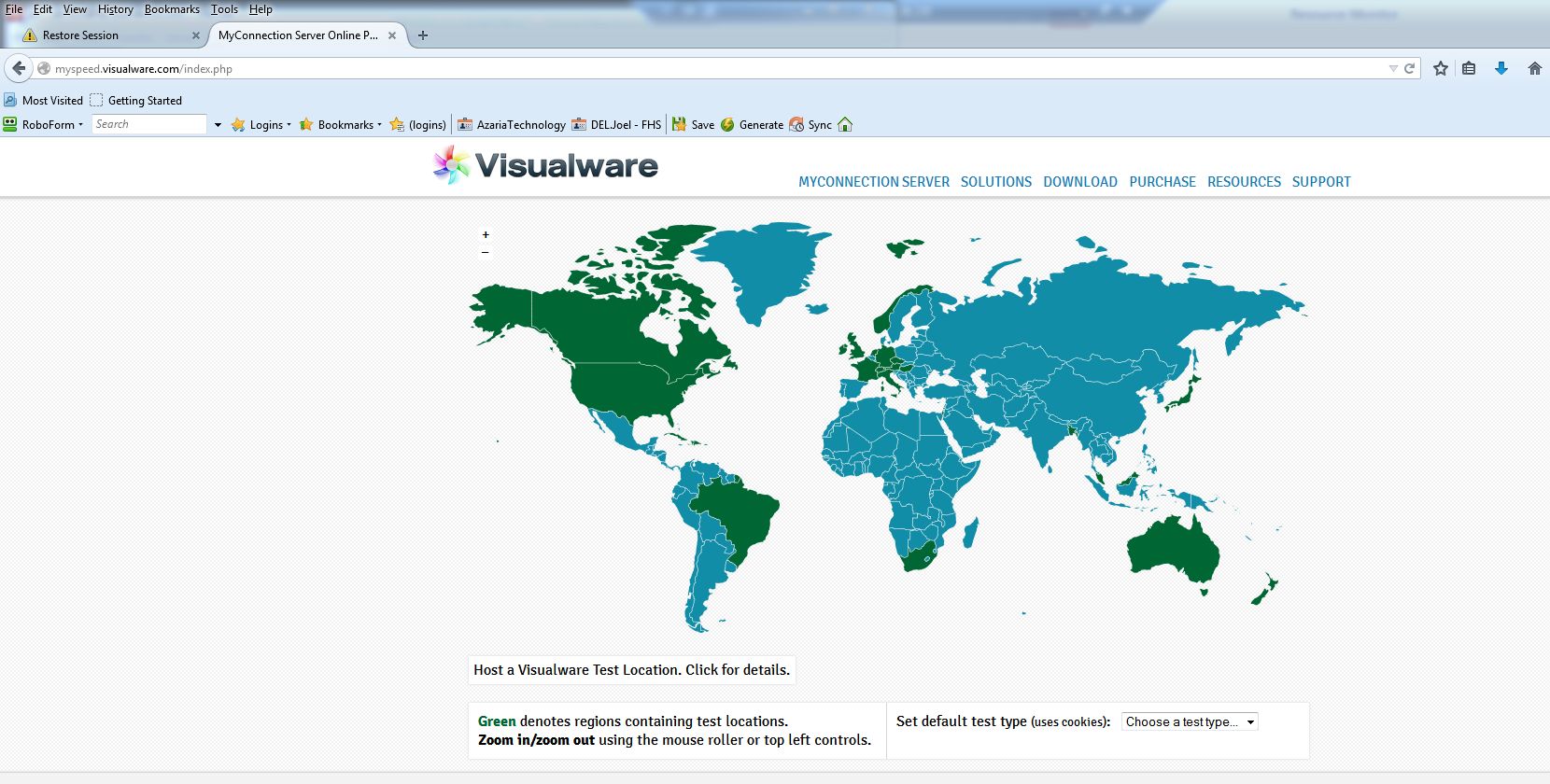
- Click one of the green regions that is closest to where you live.
- If you click on the U.S or Canada, you'll get a zoomed in map of the States or Provinces. Again, just click a green one that is closest to you.
- You should now see a box (as below) asking to choose the Test Type. Select "Quality" and click "Set Test Type" button.
NOTE: You may see another box telling that there are only a few locations available. If you see this don't worry, just continue by again choosing whichever location is closest to you.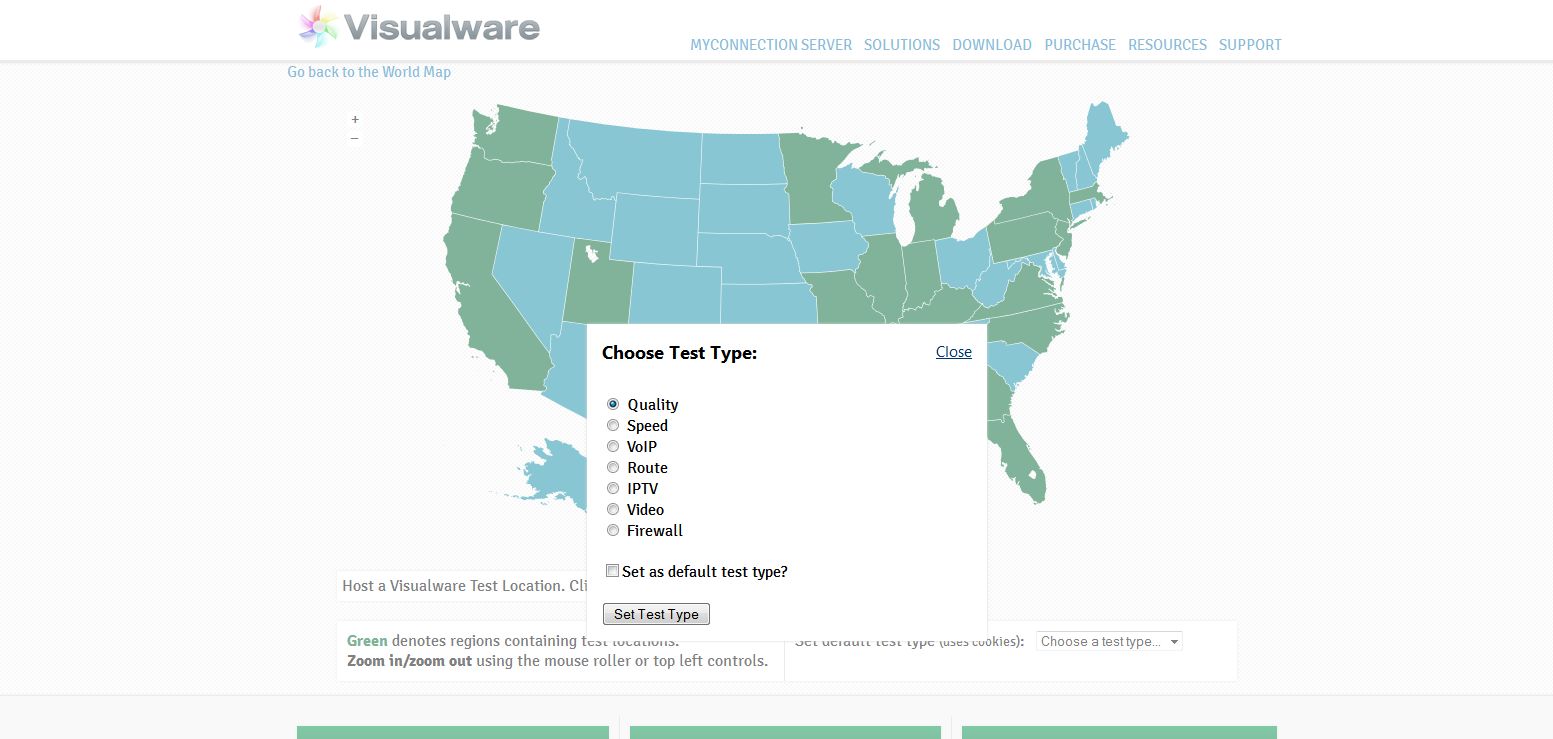
- You may need to activate/allow Java depending on your browser settings. Click in the gray area to activate it and/or allow/run any dialogs that pop up.
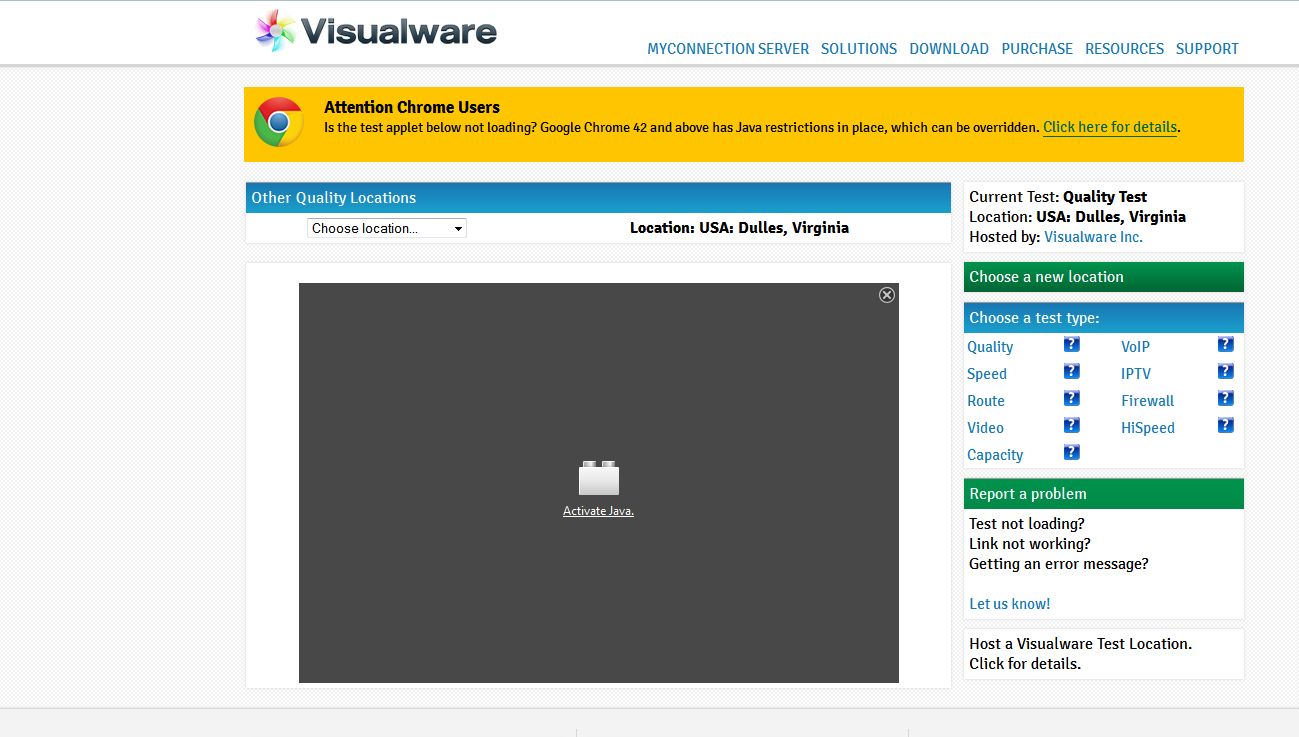
- Click the button marked "Click to start test"
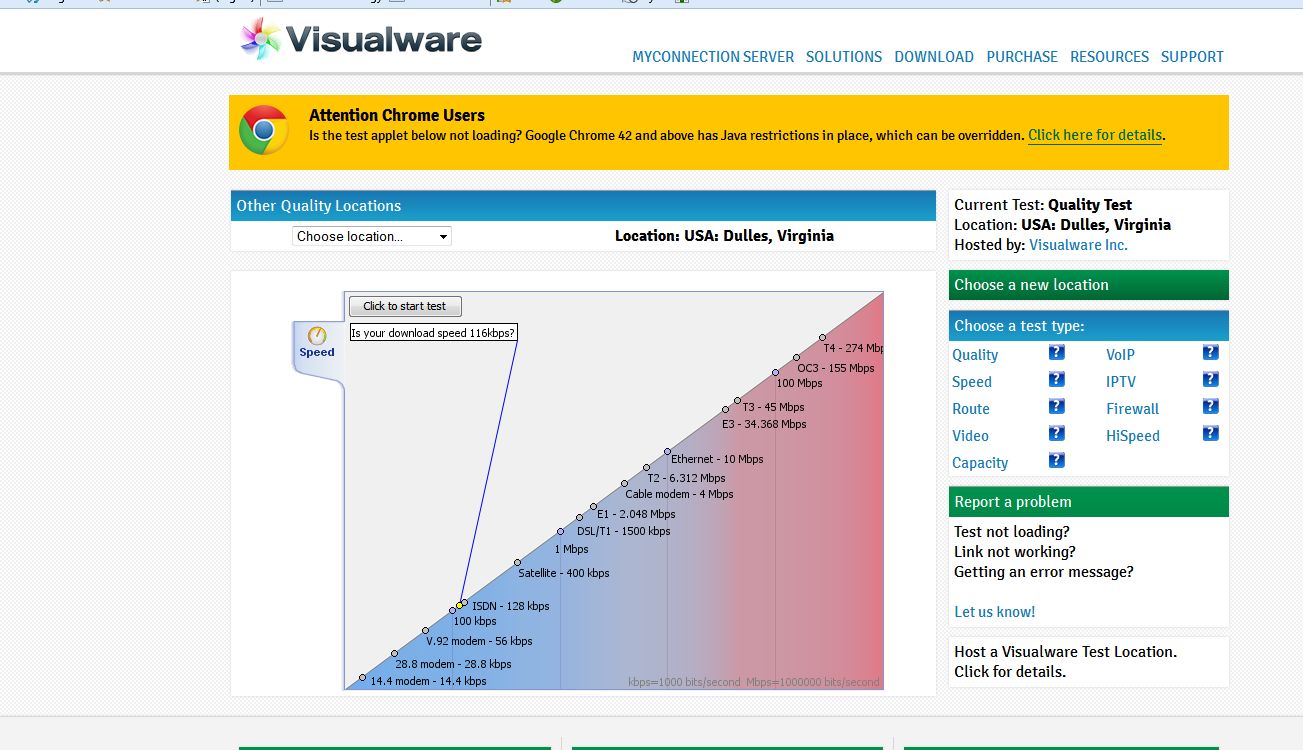
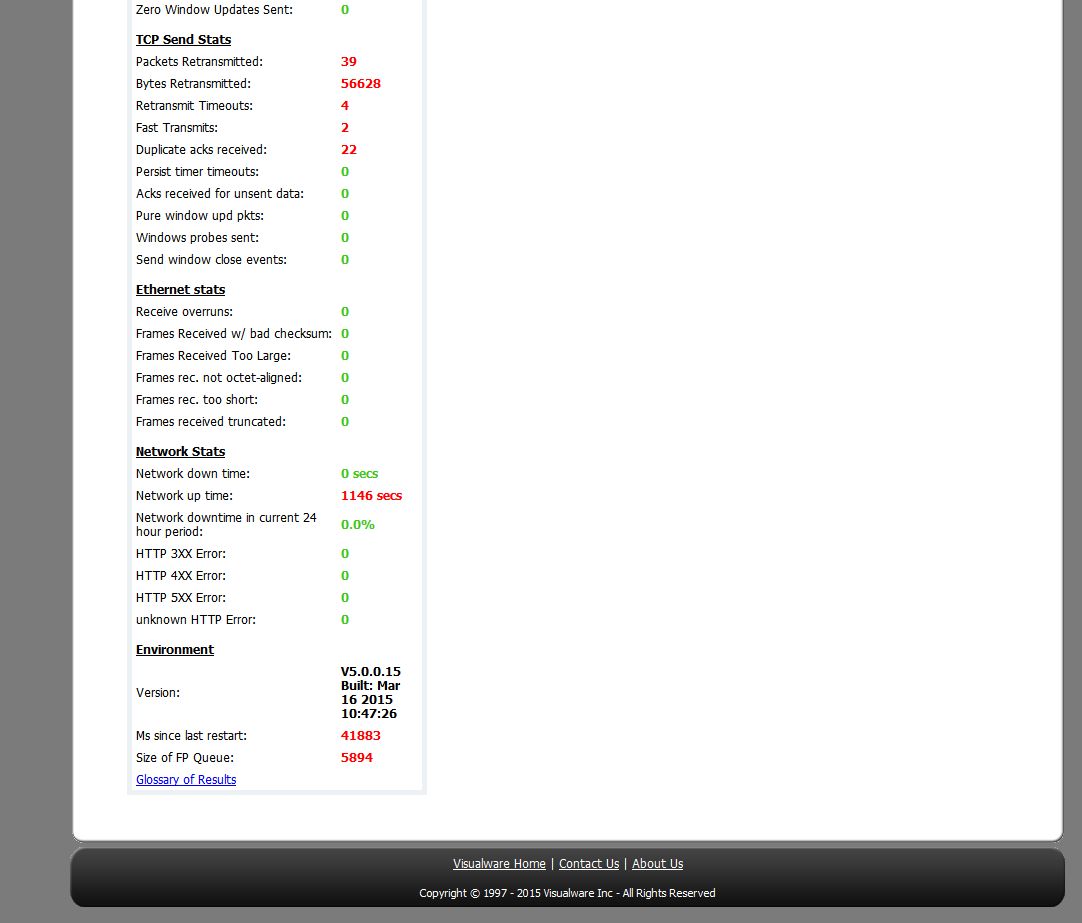
- When the test is done check the speed results and the "Line Quality Assessment". This connection is supposed to be 25/50 (upload/download). As you can see, it's not working so well. Notice the Duplicate Acks and Bytes ReTx in RED. Click the link "Further Analysis" to see more and more detailed info (2nd and 3rd images below)
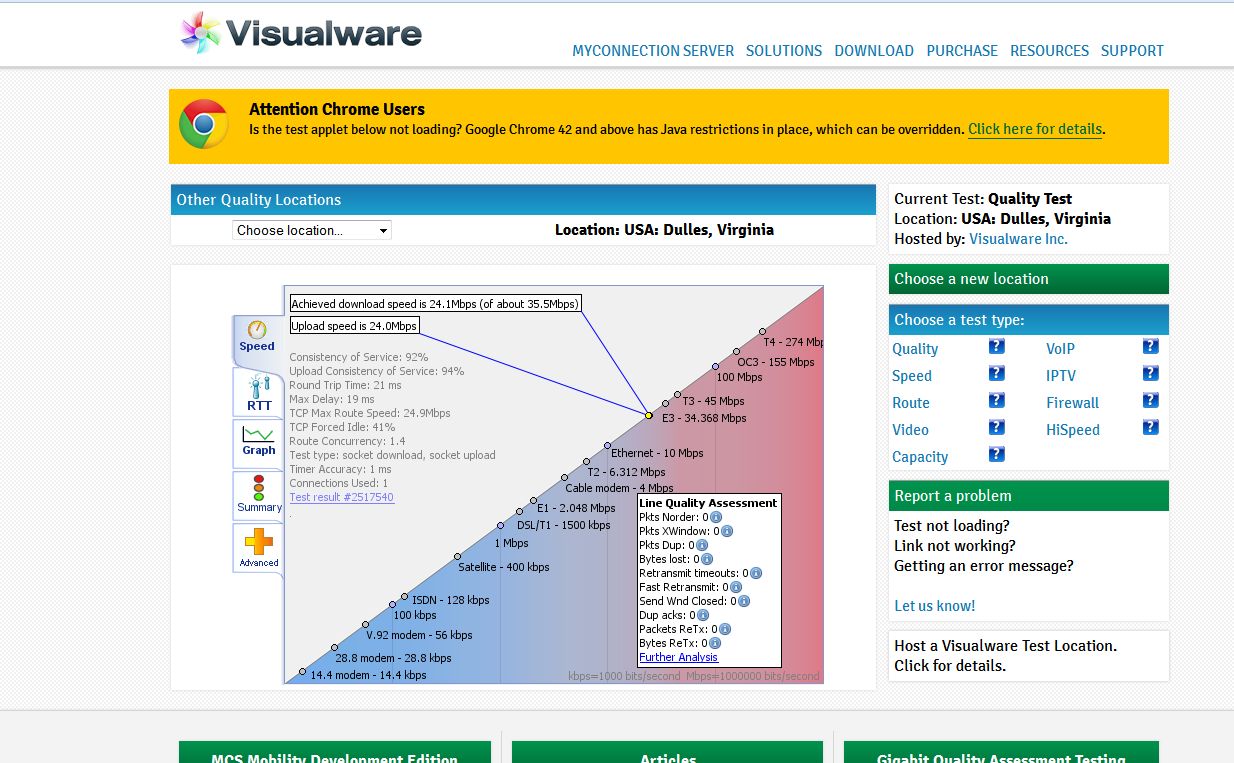
We see here high Packet Retransmits and Retransmit Bytes (indicates packets/bytes were lost). This indicates a not so stable connection. We got this by running a few dozen tests throughout the day. We knew there's a problem here but the first few tests came back normal and good (see 4th image below). Since this problem is intermittent (only shows up sometimes) we kept testing throughout the day till we caught the issue. If you're hunting an intermittent problem, you may need to do that as well.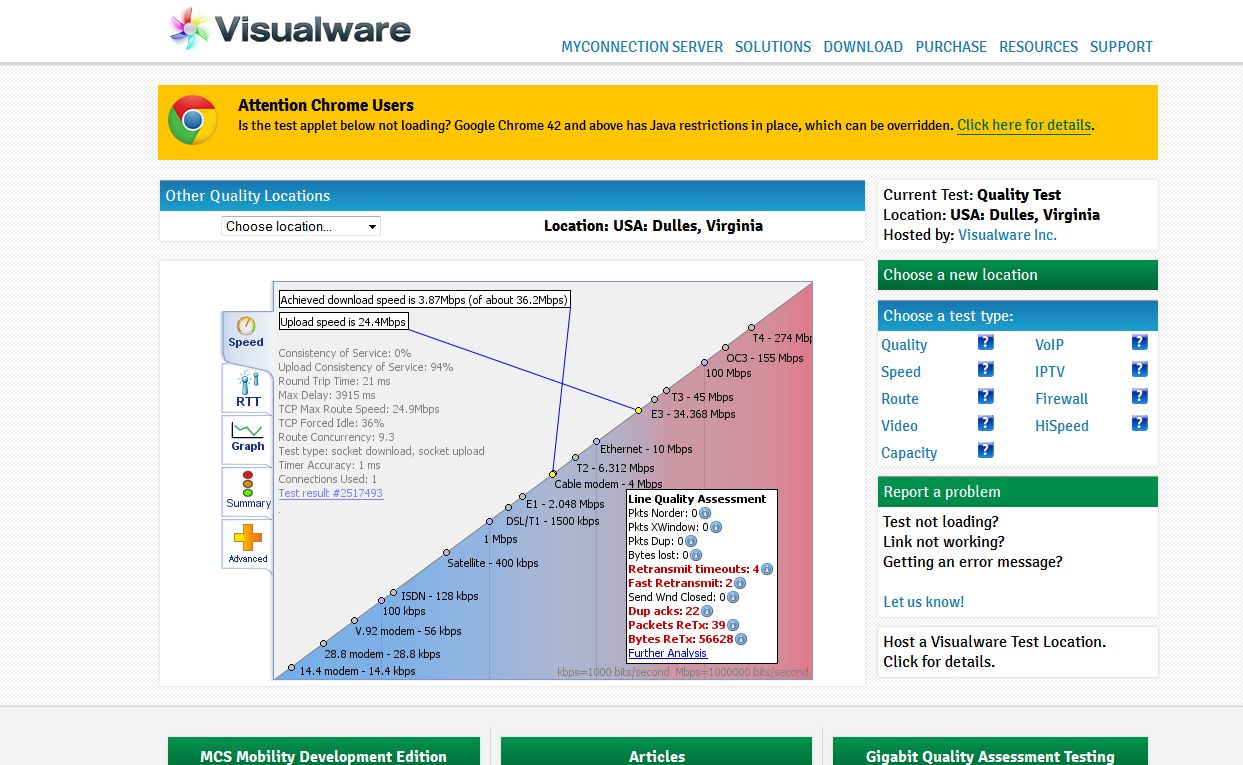
If you hit "Further Analysis" click the Back button on your browser to go back to the test screen. You may run the test again from here if necessary.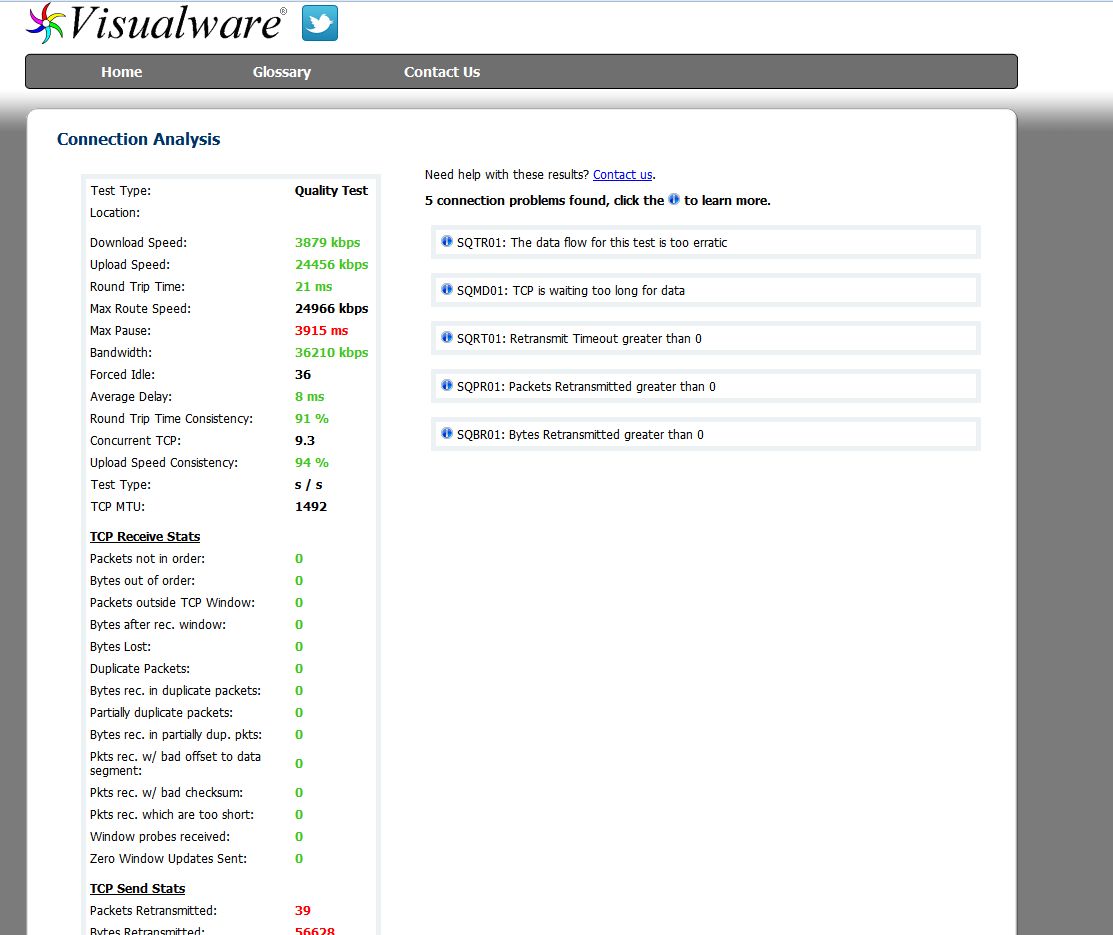
- It may be a good idea to take screenshots of your results for your records if you need to document the problem to your ISP or other provider.
- It may be a good idea to take screenshots of your results for your records if you need to document the problem to your ISP or other provider.
- On the right hand side under "Choose a test type:" you can choose another test if needed. The VoIP test also reveals good line quality metrics (like Line Jitter) if you're hunting an issue. If we ask you to test your connection please run both Quality and VoIP tests two or three times each and screenshot the results. Attach the images to your trouble ticket or as instructed by your technician or case advisor.
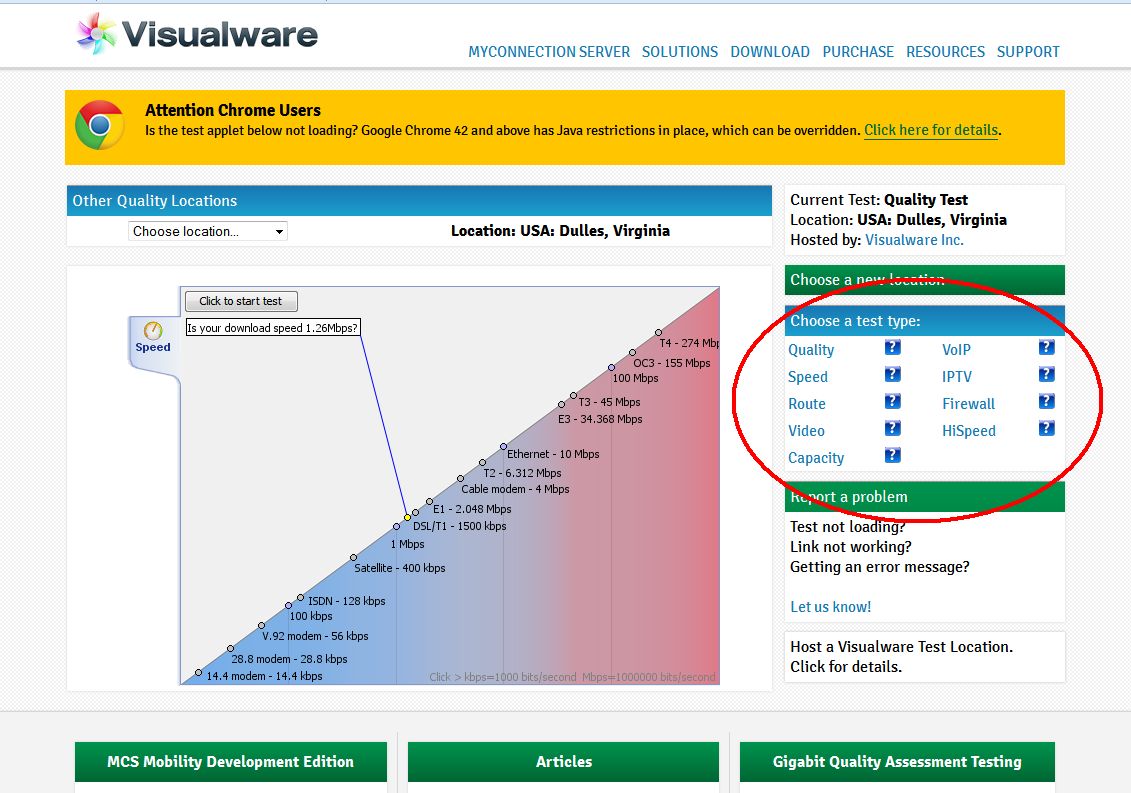
If you hit "Further Analysis" click the Back button on your browser to go back to the test screen. You may run the test again from here if necessary.